
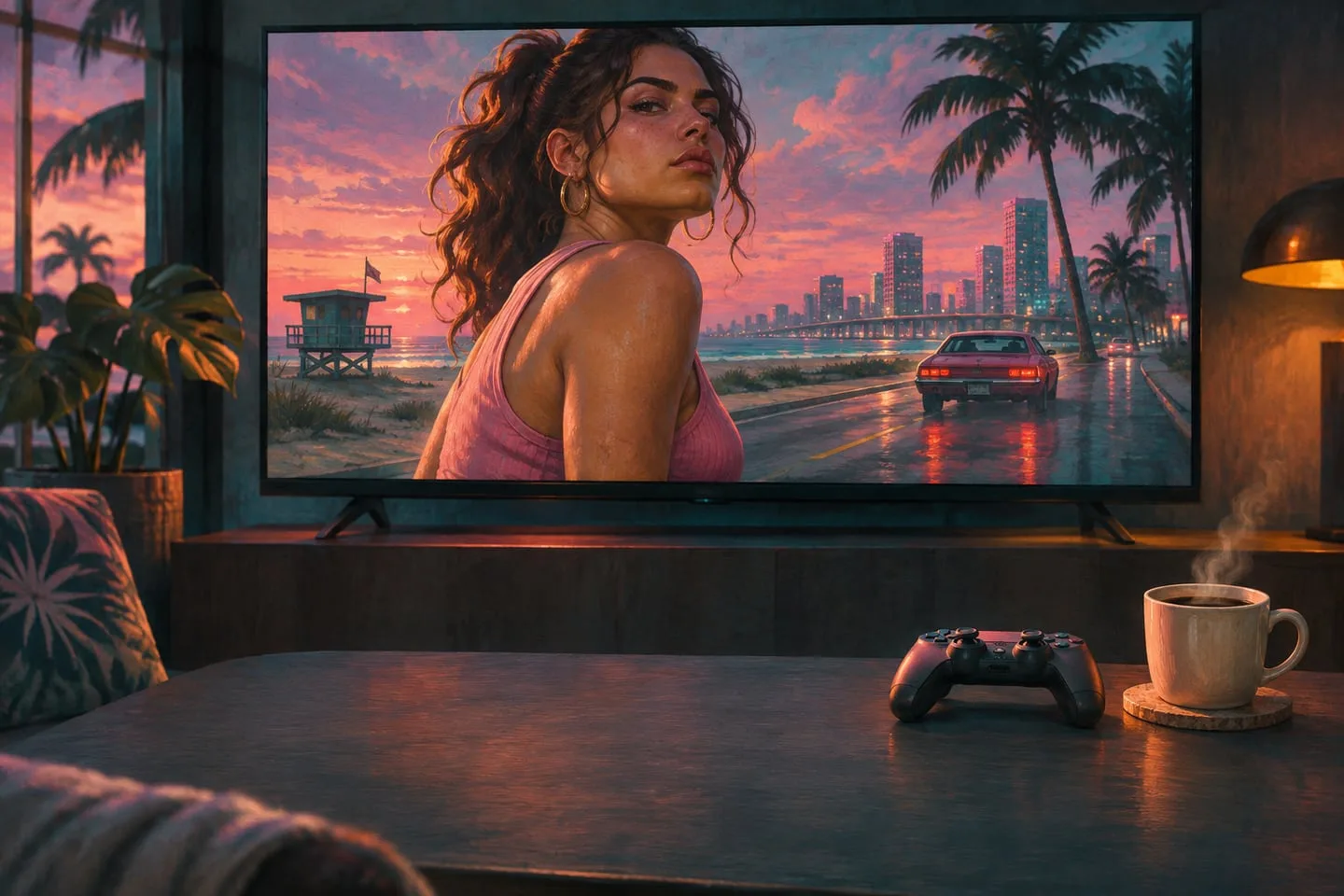
Record GTA 6 on PS5 — save the moment or capture the whole drive
Choose between a screenshot, recent gameplay and a fresh recording, then keep enough context to make the clip useful.
 GTA Lab3 min read
Choose the capture method by when the moment happens
Use a screenshot for a stable view, save recent gameplay when something surprising has already happened, or start a new recording when you want the full approach. PS5’s Create tools support these different jobs. Knowing which one you need before the first drive makes it easier to preserve the moment without stopping to explore the menu.
Choose how much of the scene you need
Sony’s Create menu offers a screenshot, a recording and an option to save recent gameplay. Use recent gameplay when something unexpected already happened. Start a new recording if your goal is to show the full approach to a landmark or the cause of a pursuit. Test the shortcut before you start if you have customized capture controls.
Leave visual context in the clip
Capture the moment you enter the road as well as the view at the stopping point. A still can show the skyline, but a short moving clip makes the approach easier for another player to follow. Use a separate screenshot when the thing you want to show is a stable landmark.
Review before sharing
Open the saved clip to check the beginning, end and audio. Trim any story dialogue you do not want to reveal. Keep one version at the original crop if you will use it later to compare locations. It can give a friend more orientation than a square cut made only for a social post.
Save one clip specifically for directions
Begin at a recognizable junction and end after you park. Include the approach turn in the clip and leave the map or landmark name in your note. This is enough context to send a friend directions without showing your current mission or the next story sequence.
Keep the part that explains what happened
A destination shot shows the view, while the preceding turn can explain how someone else reaches it. A pursuit clip is clearer when it includes the decision before the collision or escape. Review the saved result for audio, duration and framing, then trim a copy for sharing while retaining the useful source. Check the Create shortcut if you have customized it, since a guide assuming the default gesture may behave differently on your controller. Sony’s capture support page is the reference for the current menu options.